Splatoon Raiders Motion Controls
Optional gyro aiming that sharpens dungeon tracking without locking you out of stick play.
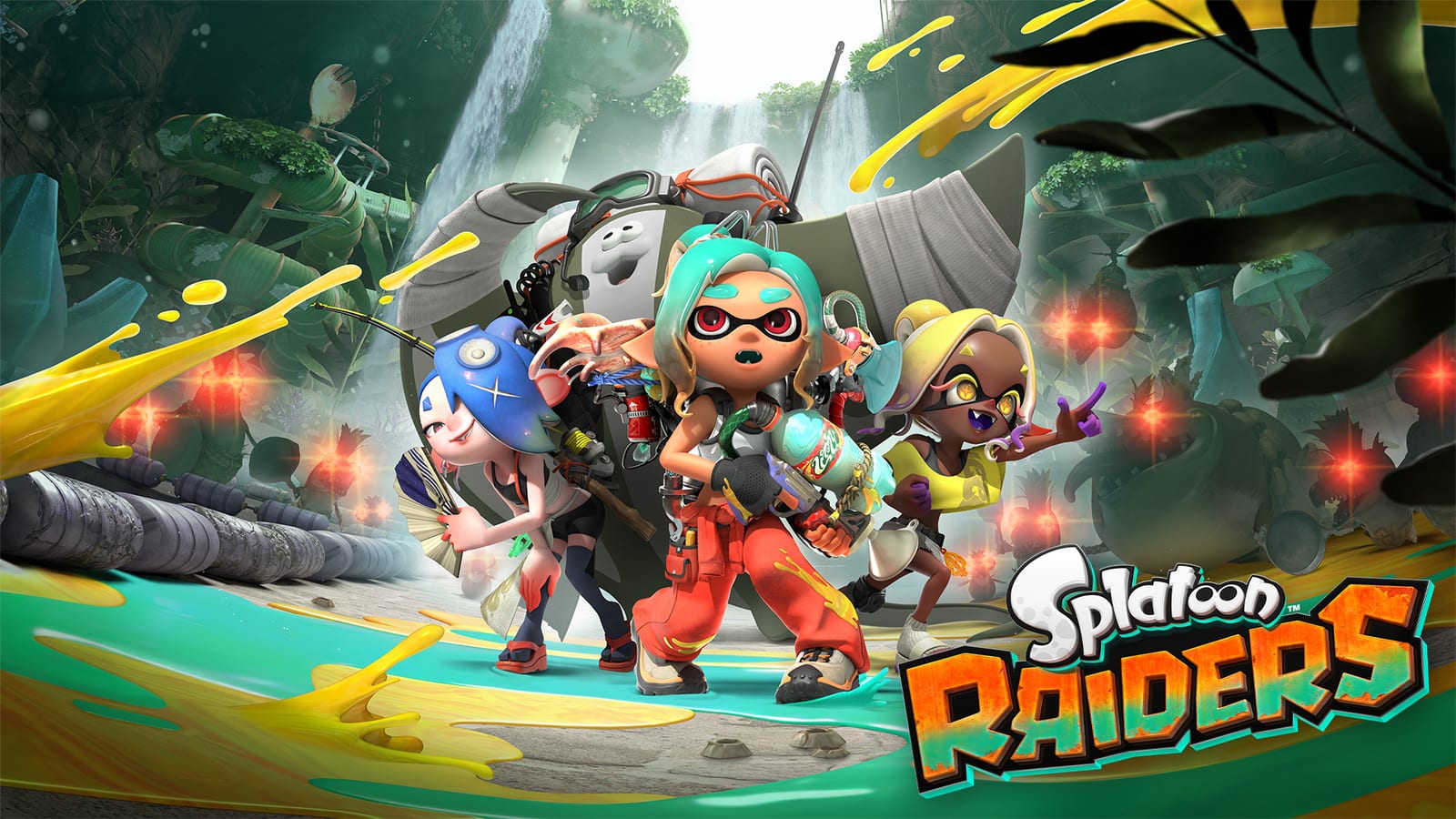
Motion controls in Splatoon Raiders are a precision layer, not a mandatory skill check. The game teaches a baseline during the early tutorial, then lets you keep, soften, or disable gyro under the Options device profile you are actually using. If you are coming from Splatoon 3, the feel will be familiar: tilt for fine aim, stick for big turns, Y to recenter when your wrists drift.
This page explains how to make motion aiming work inside raid dungeons—where Salmonids swarm from multiple elevations—and when to turn it off for comfort. Pair it with the Controls Hub overview and the numbered ranges on best settings.
What motion aiming actually does
With motion on, physical tilt adjusts your look vector. That helps when a Boss Salmonid climbs a ledge or when you hop off the Bot Buddy and need a quick downward track while floating. Stick input still matters; most comfortable setups use the right stick for large horizontal sweeps and motion for the last few degrees of aim.
If the camera feels “heavy” or your reticle drifts upward during long crystal-drill segments, your sensitivity is probably too high for the weapon range you are holding. Drop a step, reset with Y, and try again in a short Treasure Hunt before committing to a story dungeon.
Handheld versus TV or tabletop
Switch 2 sessions split across handheld commutes and docked living-room play. Raiders stores control options per device mode, so a handheld gyro value that feels perfect on the train can feel twitchy on a large TV. Always edit the tab that matches your current mode.
Docked players who rest Joy-Con 2 controllers on a lap often prefer lower motion values and slightly stronger stick assist. Handheld players who already flick the whole console can run a bit higher, especially with close-range shooters that need snap turns inside Buried Ruins corridors.
Y reset is part of the muscle memory
Treat Y as a maintenance key, not an emergency-only button. After a Bot Buddy launch, after a Blast Boot leap, or after a cutscene returns control, tap Y so your neutral tilt matches the screen center again. Skipping resets is the main reason people blame motion controls for “random” aim error.
When to disable motion entirely
Turn motion off if you share the console with someone who gets motion sick, if you play flat on a table with almost no wrist space, or if you are learning a brand-new weapon archetype and want one less variable. Stick-only aim is fully supported. You can re-enable gyro later without losing story progress or Hideout Ship upgrades.
Some couch co-op nights also feel cleaner with sticks only, especially when four players sit close and controllers bump. Solo farming loops are usually where gyro shines, because you can micro-adjust while swimming through ink to refill.
Dungeon-specific motion habits
Story and Past Adventures stages like Pantree Beach, Piel Coast, Blansh Seaway, and Scayl Buried Ruins teach verticality gradually. Use motion to peek ledges before you commit a gadget charge. In Shard Mining and Spirhalite gem search rooms, keep sensitivity modest so you do not overflick while defending a drill point.
Sampler Dungeons unlocked with Old Compasses often restrict gadgets or demand platform precision. If a compass challenge feels unfair, lower gyro for that session rather than forcing a high sensitivity that worked in open Treasure Hunt maps. Check the dungeons overview when you are unsure which objective type you queued.
Training routine that actually sticks
- Set a starting sensitivity from the best settings table for your weapon range.
- Spend five minutes on the Hideout Ship test range tracking moving targets while swimming between ink pads.
- Run one low-pressure Erpp Island farm for materials listed in the materials guide.
- Only then attempt a Spicy or Survivalist clear where aim mistakes cost the raid.
If your shots land but your gadgets miss timing, the problem is not gyro—it is L/R cadence. Revisit the Controls Hub gadget section and rebuild the muscle memory before blaming the sensor.
Comfort and accessibility notes
Take breaks on long Spirhalite Island grind sessions. Motion aiming uses small, repeated wrist motions that fatigue faster than stick-only play. If your accuracy collapses after thirty minutes, drop sensitivity one notch or switch to stick aim for the next farm rather than pushing through with shaky micro-adjustments.
You can also change difficulty to Tourist while practicing a new motion profile. Enemy damage drops, loot rules stay the same, and you get cleaner reps on Boss telegraphs. That makes motion practice compatible with item farming instead of a separate homework mode.
Link your aim settings to loadouts
Close-range Power Tank rushes want faster look speed; long-range Tactical kits want stability. When you swap presets on the ship, glance at Options and confirm the profile still matches the weapon. Keep a note in the raid checklist if your squad rotates roles so you do not jump into co-op with yesterday’s charger sensitivity on today’s blaster.
Frequently Asked Questions
Quick answers to the most common questions.
Is motion aiming on by default in Splatoon Raiders?
The tutorial establishes a motion baseline early. You can lower sensitivity or disable motion later in Options under the handheld or TV/tabletop tab that matches how you are playing.
What does the Y button do with motion controls?
Y recenters your view to a neutral camera. Use it after launches, leaps, menus, or any moment your physical tilt no longer matches the on-screen reticle.
Can I use stick aim and motion together?
Yes. A common setup uses the right stick for large turns and motion for fine tracking. If that blend feels noisy, reduce one of the two sensitivities instead of turning everything off at once.
Does co-op require motion controls?
No. Online and local wireless raids work with stick-only aim. Choose whatever keeps your tracking consistent for a full dungeon timer.
Why does gyro feel different after I dock the Switch 2?
Control settings are separated by device mode. Open the TV/tabletop tab after docking and retune; handheld values do not automatically feel identical on a larger screen.